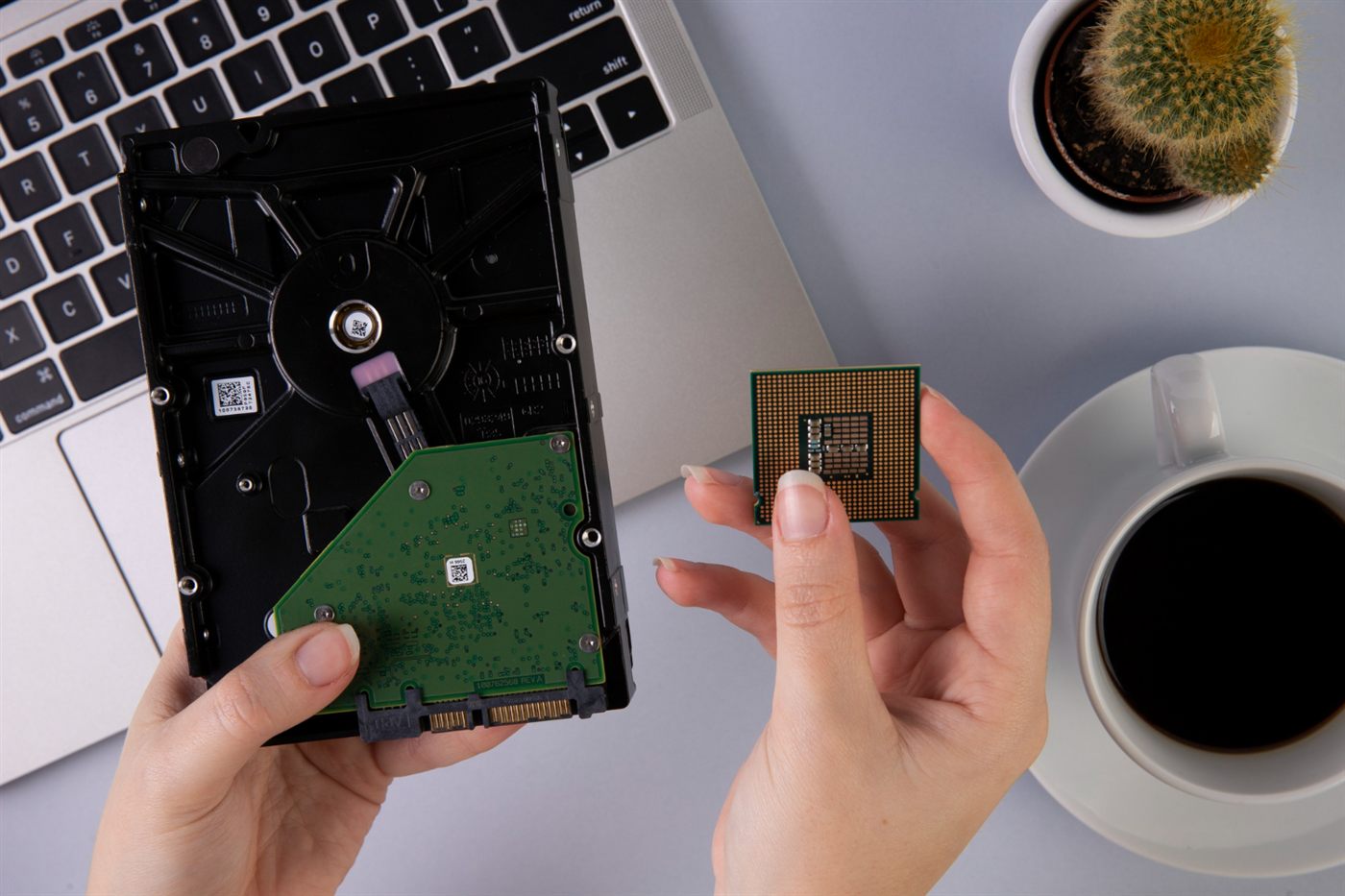
Memory and storage solve different needs. Memory supports the work running now; storage holds your files and installed software. Start with what you open and keep, then check the proposed configuration against that workload.
Describe a busy session
Write down the applications you use together, including browser tabs, a video call and any large documents. Check the software publishers’ recommended requirements, not only the minimum needed to launch an application. Share this working pattern with the seller.
Estimate what you need to keep
Look at your current documents, photos and project folders. Allow space for the operating system, applications and future files. A large advertised drive is not the same as that amount of free space after setup. Decide which files belong on the laptop and which belong in your approved backup system.
Treat upgrades as a separate decision
Ask whether the exact model supports the change you want and who would carry it out. Do not buy an inadequate configuration on the assumption that memory or storage can always be expanded cheaply. A ready-to-use alternative may be easier to evaluate.
Check the offered device
Confirm installed memory and storage in writing, then test your normal workload where possible. See our guide to checking a used laptop’s technical fit for the other compatibility questions to settle first.
Frequently asked questions
Are memory and storage interchangeable?
No. More storage gives you room for files, but it does not directly replace the memory used by running applications.
Should I choose only the minimum memory an application lists?
Consider the recommended specification and the other applications you run at the same time. Minimum requirements may not describe your full working day.
Can every laptop’s memory be upgraded later?
Do not assume that. Check the exact model’s specifications and a confirmed upgrade arrangement before relying on a future change.